You have 24 new products ready for a Friday launch. The product pages, prices, and photos are finished, but you want all 24 products to appear in your Shopify store at noon instead of publishing them one at a time.
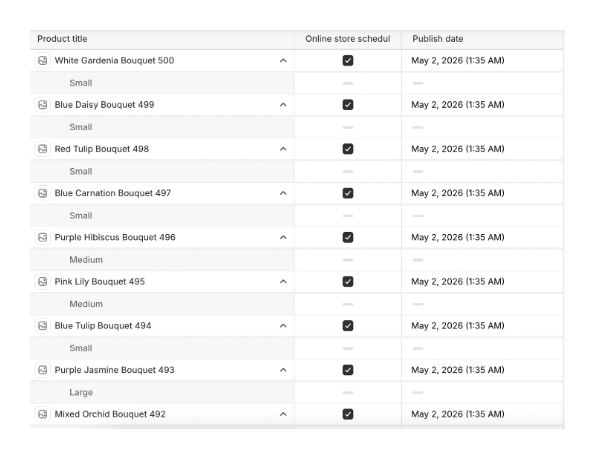
Shopify lets you schedule product publishing from the admin. Select the products in the bulk editor, enter the launch date once, and fill that value down the selected rows. If you run launches often and want one place to manage repeated batches, use a product-scheduling app.
Prepare the products first
Complete the product pages while the products are still in Draft status. Add the photos, description, price, variants, and inventory before you prepare the launch.
Schedule the products in Shopify
- Open Products in your Shopify admin.
- Select the 24 products.
- Click Bulk edit.
- Click Columns and add Status and the Online Store publishing fields.
- Set the selected products to Active.
- Enter the Friday launch date and noon time in the first schedule cell, then drag the fill handle down the other selected rows.
- Save the changes.
After you save, the products stay hidden from the Online Store until the scheduled time. At noon, Shopify publishes all 24 products together.
Use an app for regular launches
For a single launch of the 24 products, Shopify's bulk editor is enough. If you run weekly product drops or need to publish and unpublish batches on a schedule, Schedora gives you one place to manage those dates.
If you need to schedule one product's start and end dates, see how to schedule product availability in Shopify.