You have product pages with missing or outdated SEO titles and meta descriptions. Updating them one by one takes too long, so you want to edit the fields together.
Shopify gives you two ways to do that. Use the bulk editor when you want to edit the products inside Shopify admin. Use a CSV file when you want to work through a large catalog in a spreadsheet and import the changes afterward.
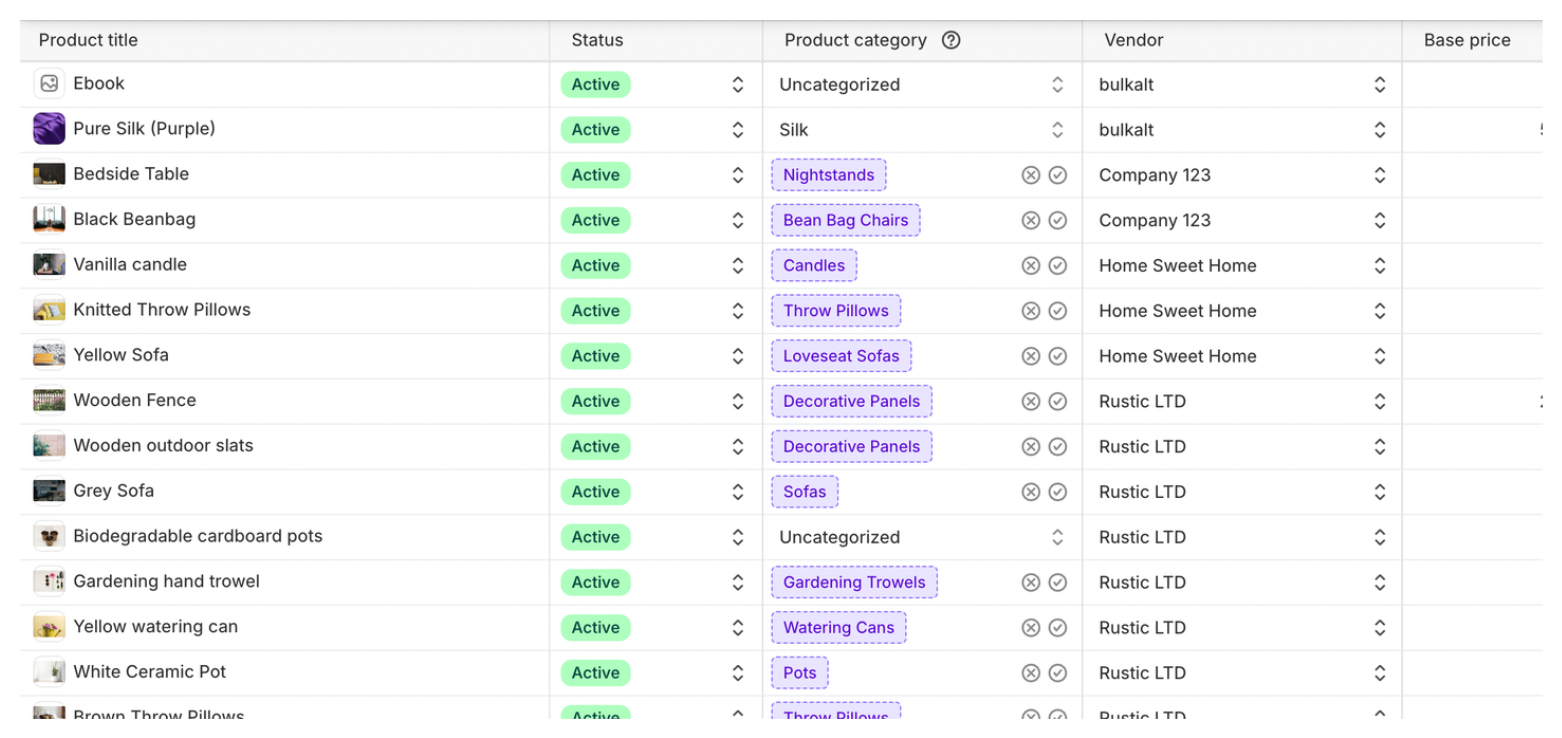
Edit product SEO in Shopify admin
The bulk editor lets you change the SEO fields in a table without opening each product page.
- Open Products in Shopify admin.
- Select the products you want to change.
- Click Bulk edit.
- Click Columns and add SEO title and SEO description.
- Enter the text in the matching product rows.
- Click Save.
Check the product name at the start of each row before saving. The SEO title and description should describe the product on that row.
Edit product SEO in a CSV file
Use the CSV method when you want to sort products, prepare text in a spreadsheet, or update a large catalog in one import.
- Open Products and click Export.
- Export the products you want to update.
- Open the CSV in Google Sheets, Excel, or another spreadsheet app.
- Edit the SEO Title and SEO Description columns.
- Save the file as a CSV.
- Return to Products, click Import, and upload the file.
Keep the original export before editing the file. Leave columns you did not intend to change alone, and test the import with a small group of products before importing the full catalog.
What to write in the two fields
Use the SEO title to describe the product and include the main phrase a customer would use to find it. Use the meta description to add a useful detail that helps the customer decide whether to open the result.
For a product called Blue ceramic mug, an SEO title could be Blue Ceramic Mug with Curved Handle | Store Name. A meta description could be Blue ceramic mug with a curved handle, dishwasher-safe finish, and 12-ounce capacity.
Write text that matches the product on that row. A single title or description copied across products will not describe products with different materials, sizes, or uses.
When these fields are empty, Shopify can use the product title and description for the search listing. Custom text gives the product page a more specific title and description. Google can still choose different text for a particular search.
Update image alt text in the same catalog
The product CSV also includes an Image Alt Text column. You can edit that column in the spreadsheet when you want to update image descriptions alongside product SEO fields.
For help writing the descriptions, read how to add alt text to Shopify product images. If you are working through thousands of images, how to manage alt text across a large Shopify catalog explains that workflow.
Choose an app when it saves you time
Both Shopify's bulk editor and product CSV can update product SEO for you. You still have to work through the rows yourself, so an app can save time by filtering products, showing related fields together, or keeping the work in one place.
Matrixify is useful when the update includes several Shopify resource types, such as products, collections, pages, blog posts, or metafields. It gives you more fields and import controls than Shopify's product CSV.
AltMate is useful when the main task is image alt text. It shows each product image beside its current text, so you can write the description while looking at the image instead of matching spreadsheet rows to images.