Your Shopify store uses a cart drawer instead of a traditional cart page. When customers add a product, the drawer slides in from the side and the entire experience stays inside your theme.
You have already optimized this drawer and you want customers to stay inside it through the entire purchase flow.
When customers click Checkout inside the cart drawer, they go straight to the Shopify checkout. This part works exactly as expected.
The issue begins when the customer clicks the Shopping Cart link at the top of the checkout page. Instead of opening your cart drawer, Shopify sends them to the standard /cart page.
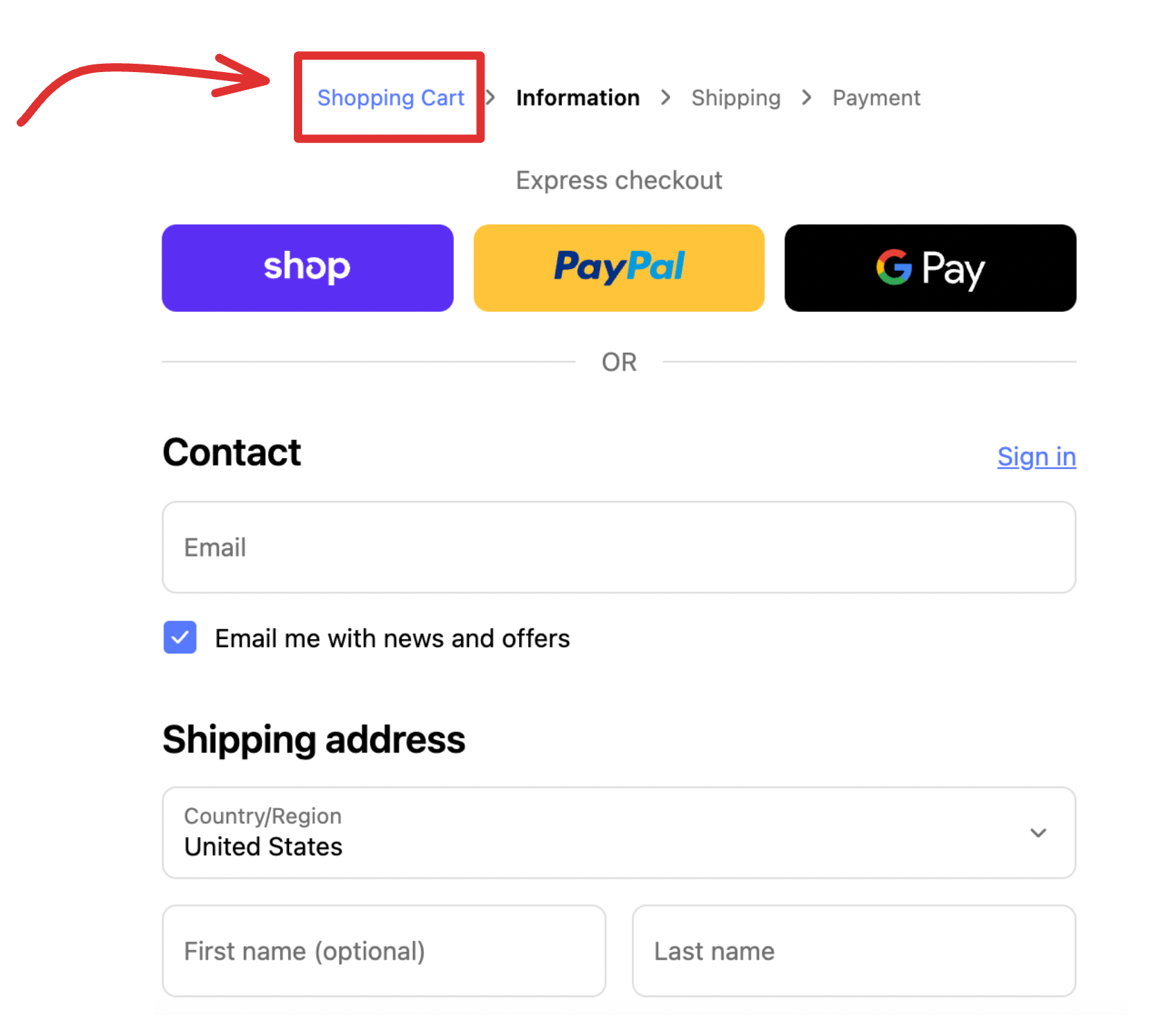
This breaks your drawer experience and creates confusion.
Why this happens
Inside the checkout flow, Shopify blocks all theme scripts, custom JavaScript, and any theme based cart actions. This protects the checkout and keeps it fully controlled by Shopify.
Since the cart drawer depends on theme scripts, it cannot run on checkout pages.
When the customer clicks the cart link inside checkout, Shopify redirects them directly to the /cart page.
This is the intended behavior and it applies to every theme because checkout is isolated from the theme.
The workaround
You cannot change or override the default cart link inside checkout. You can only control what happens after Shopify loads the cart page.
The solution is simple. When someone reaches /cart, you immediately redirect them to another page where the cart drawer opens automatically.
There will be a short one to two second flash of the cart page before the redirect happens. This is normal because Shopify loads the page before any theme script runs.
After the redirect, the visitor lands on the page you selected and the drawer opens right away. If your drawer is optimized, this gives you the closest possible drawer only shopping flow.
Here is the exact setup.
1. Add a redirect snippet in main-cart-items.liquid
Open main-cart-items.liquid. This is the cart template used in the Dawn theme. Other themes have a similar file with the same purpose.
Place this code at the very top of the file:
<script>
  window.location.href = "/?open_cart=true";
</script>
This forces every visitor who reaches the cart page to return to the homepage. If you prefer a different destination, replace the slash with the URL of any page in your store.
Customers will see the cart page briefly before the redirect fires. As soon as the redirect completes, your drawer will open on the new page.
2. Add the drawer open logic in global.js
Open global.js. This file controls theme level JavaScript, including the function that opens the cart drawer.
Search inside the file for the function used to open the drawer. It often looks like:
openCartDrawer();
Copy the function name exactly as it appears. Then scroll to the bottom of global.js and add:
if (window.location.search.includes("open_cart=true")) {
  if (typeof openCartDrawer === "function") {
    openCartDrawer();
  }
}
This checks the URL and opens the drawer automatically when the page loads.
3. (Optional) clean URL logic in global.js
Place this snippet right after the previous one if you want to remove the query parameter once the drawer opens:
const url = new URL(window.location);
if (url.searchParams.has("open_cart")) {
  url.searchParams.delete("open_cart");
  window.history.replaceState({}, "", url.toString());
}
This keeps your URLs clean and avoids showing open cart parameters to shoppers.
Once you complete this setup, your checkout flow stays consistent. When shoppers click the return to cart link inside checkout, they land on the /cart page for a brief moment and then get redirected to your chosen page.
The cart drawer opens automatically, keeping customers inside your optimized drawer experience and preventing the default Shopify cart page from interrupting the flow. Cart friction like this is one of several reasons checkout completion rates drop — if you are seeing low numbers across the board, the guide on common reasons your Shopify checkout rate is low covers the full picture.