If you run a bookshop, flower shop, gift shop, or any other shop where customers purchase something to send to someone else, they need to enter the recipient's address instead of their own address.
The problem starts when the customer clicks the saved address shown by their browser or payment provider, such as PayPal, while filling in the checkout. Their own address gets filled in, and they continue without even noticing it.
The customer then receives the order confirmation and realizes that their own address was used instead of the recipient's address. They contact you and ask you to change it.
Gift deliveries usually need extra details along with the standard shipping details. For example, a hospital delivery needs the hospital name, ward, and room number, while a school delivery needs the school, building, department, and classroom.
If you also need to collect gift messages or delivery notes, see how to set up custom gift box options in Shopify.
These extra details are collected through a third-party app. When the customer asks you to change the address, Shopify's order editor only lets you edit the standard shipping details provided by Shopify. You cannot update the extra details from the third-party app there, so one part of the delivery information changes while the other part stays the same.
This is the problem many shops keep dealing with. None of the options below will fix it 100%, but they can reduce the number of wrong addresses and the time you spend correcting them.
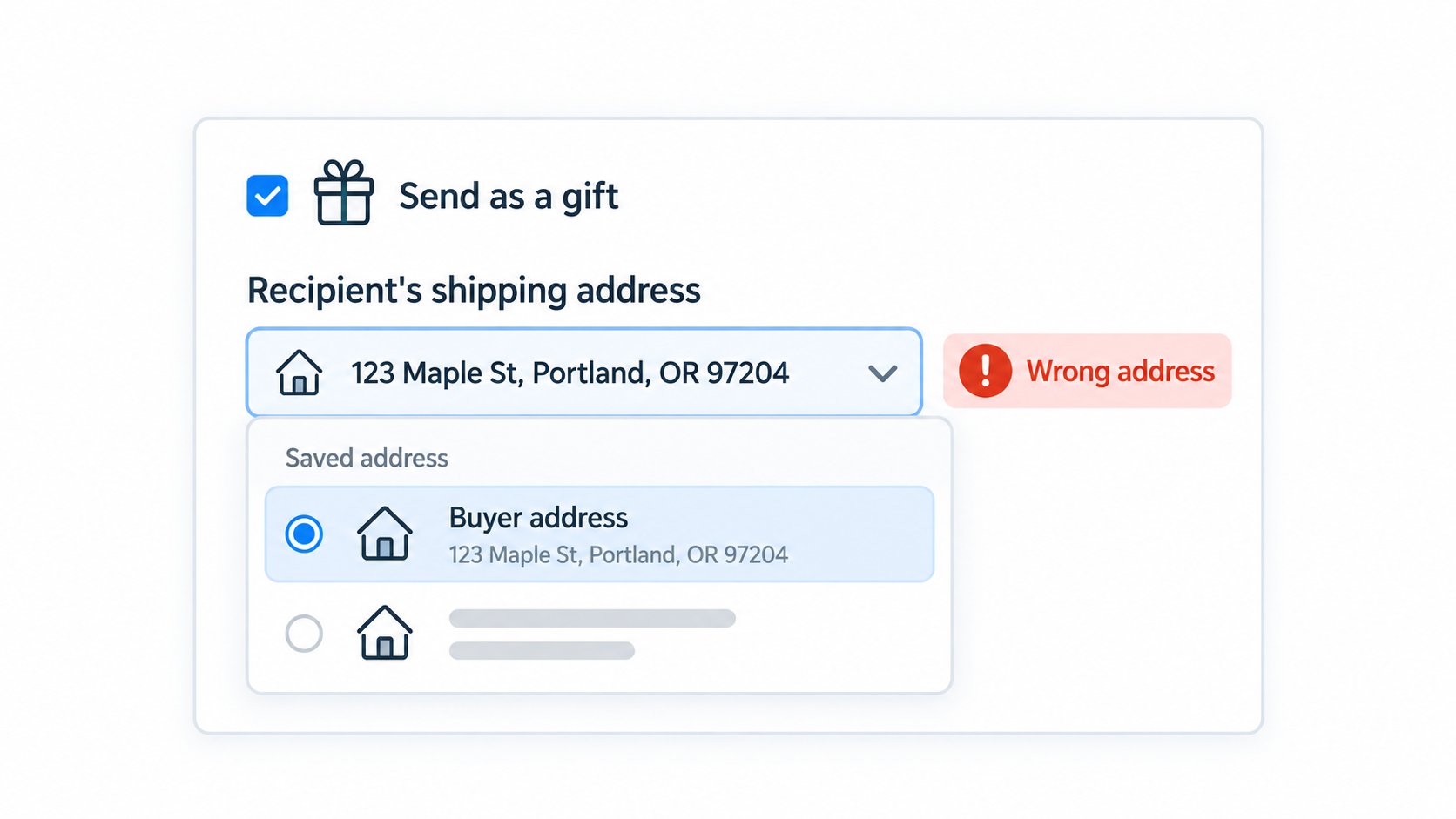
Turn Off Shopify's Address Suggestions
The first thing you can do is turn off Shopify's own address suggestions. These are the suggestions that appear when the customer is typing an address.
To turn them off, go to Settings → Checkout. Open your checkout configuration and turn off Use address autocompletion in the checkout and accounts editor.
The customer will then have to type the address instead of selecting one of Shopify's suggestions. If the customer was using Shopify's autocomplete, this should solve the problem.
This only solves part of the problem. If the customer is using a saved address in their browser or payment provider, they can still click that address and have it filled in during checkout.
Try turning off Shopify's address suggestions and see whether that solves the problem in your store.
Keep The Recipient Address Separate
Another thing you can do is stop Shopify from using the shipping address as the billing address by default.
Go to Settings → Checkout. Select Allow shipping and billing addresses to be different, then select Don't use shipping address as billing address by default.
Now the customer has to enter the billing address and shipping address separately. This creates an extra step where they can realize that the shipping address should belong to the recipient.
If the customer still enters their own address, this setting will not solve the problem. But it adds a little friction to the checkout and can prevent some customers from submitting the wrong address without noticing it.
Use Manual Payment Capture
Even after these changes, some customers will still enter the wrong address. That is unavoidable because you cannot expect every customer to do the right thing every time.
You can use manual payment capture for these orders. Set a waiting period, such as 24 hours, before capturing the payment.
If the customer notices the mistake during that time and contacts you, you can cancel the order before capturing the payment. The customer can then place a new order with the correct address and recipient details, and you do not have to deal with refunding a payment that was already captured.
If the problem happens only with one payment provider, you can also stop offering that payment option. For example, if PayPal keeps filling the wrong address for gift orders, you can remove PayPal from your checkout.
This removes the problem from that payment method, but it also removes that payment option for your customers.
These changes will not prevent every mistake, but they will reduce the number of orders you need to correct after checkout.