Shopify Pages are useful for content such as an FAQ, shipping information, a size guide, or care instructions. You may add the questions and answers to a Page so customers can find them through your store search.
For example, you may have a Page called “Shipping Information” with the words “international shipping” in the content. But when you search for “international shipping” in your store search, the Page does not appear.
Why does that happen? Does Shopify search the content inside a Page, or only its title?
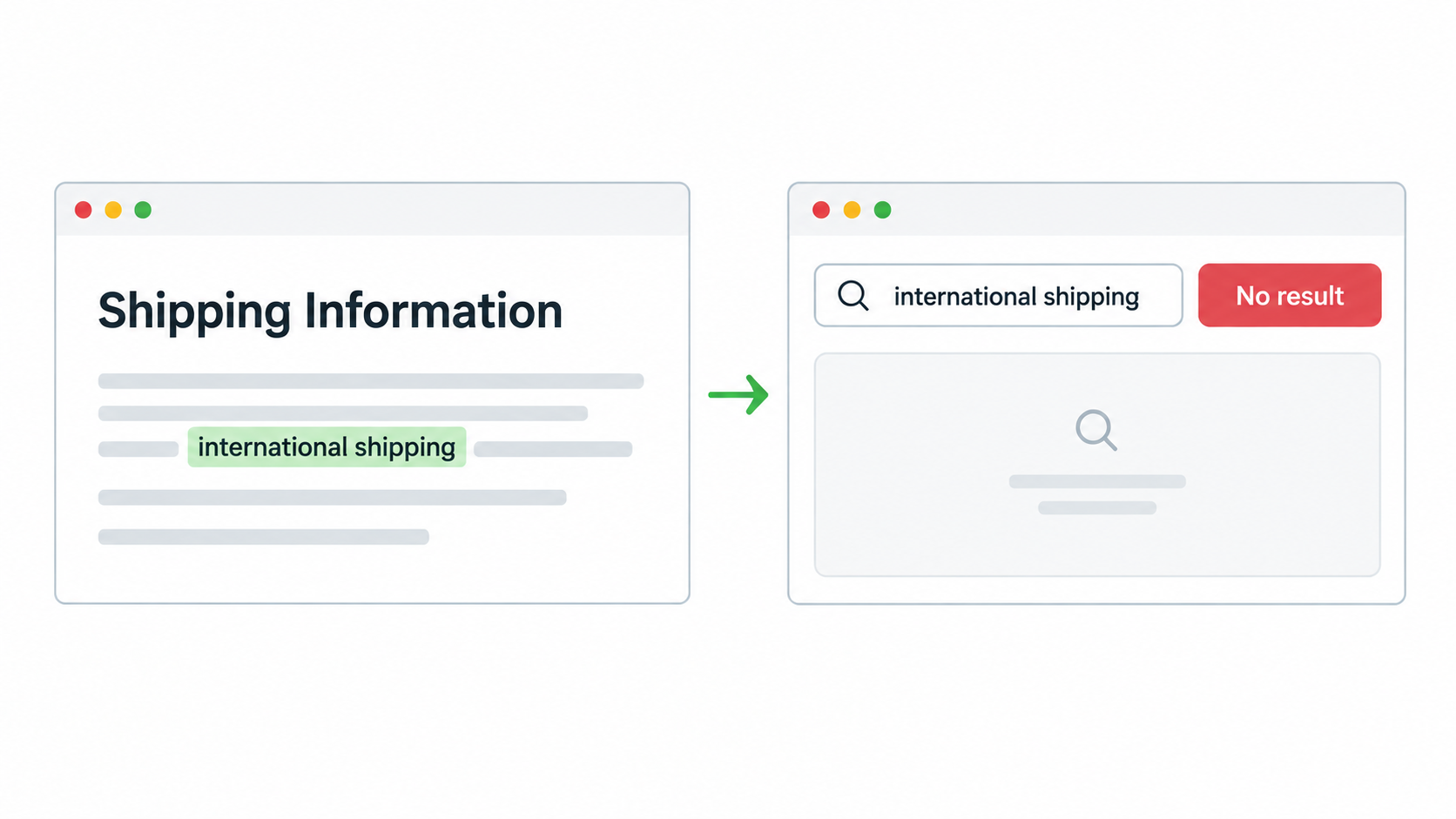
How Shopify Searches Pages
Shopify store search can search the title and body content of Pages. It can also search products, blog posts, and other details such as product tags, types, vendors, and variant details.
So, if “international shipping” is in the actual content of your Shipping Information Page, Shopify should be able to find that Page when you search for the phrase.
Test the Page Search
Choose a Page where the phrase appears in the content but not in the Page title. I would use “international shipping” from the Shipping Information example.
You can test it like this:
- Open your store in a private browser window.
- Search for the complete phrase in your store search.
- Press Enter to open the full search results page.
- Check whether the Page appears in the results.
If the Page appears, Shopify found the phrase. If it does not appear, check the Page and search settings below.
If the Page Does Not Appear
If the Page is missing from the full search results page, check these things first.
Make sure the Page is published. An unpublished Page cannot appear in your store search.
Check where you added the text. If you added it in Shopify admin under Online Store → Pages, in the Page's Content box, Shopify will use it for search. If you added it only in the theme editor, Shopify will not use that text when searching the Page.
Search for complete words. Shopify may sometimes match a partial word or a typo, but it does not reliably match half of a word. Search for international shipping, not only internation.
Make sure the Page is not hidden from search. Shopify has a setting that can hide a Page from store search. Check that it has not been turned on.
Temporarily uninstall another search app. If another search app is installed, uninstall it and search for the same phrase again. If the Page appears, that app was controlling the search results. You can reinstall it after the test and check its settings.
After checking these settings, search for the same phrase again. You should now be able to find the Page in the search results.
If the Page Only Appears After Pressing Enter
Some themes show a small list of suggestions while the customer is typing. That list is separate from the full search results page.
If the Page appears after you press Enter but does not appear in the suggestions, Shopify has found the Page. The issue is with what your theme asks for or shows in that small list.
In that case, check with your theme developer. Tell them that the Page appears in the full search results page when you search for words from its content, but it does not appear in the typing suggestions.
Use Shopify Search & Discovery for Different Search Terms
If the Page appears for the exact phrase but customers use different words, Shopify Search & Discovery can help. It is a free app from Shopify that lets you connect phrases customers use with the words in your content.
For example, your Page may say “international delivery”, while customers search for “international shipping”. Add both phrases to the same synonym group so either search can show the Page.
The app can also let you choose which types of results Shopify shows, such as products, Pages, or blog posts. For example, you can keep Pages and blog posts out of the results if you only want customers to see products.
For most stores, Shopify's built-in search and Search & Discovery are enough. A different search app is only worth considering when you need filters for details such as size, color, material, availability, and price, or a completely different search display.