You take orders for a product on Tuesday and Wednesday, then close orders until the following week. Shopify still shows the product after Wednesday, so customers can place orders when you are not accepting them.
Shopify does not have a repeating “sell this product only on these days” setting. For one launch, use future publishing. For a weekly or daily schedule, use Shopify Flow or a scheduling app. You can also keep the product visible and stop orders by setting its available quantity to zero.
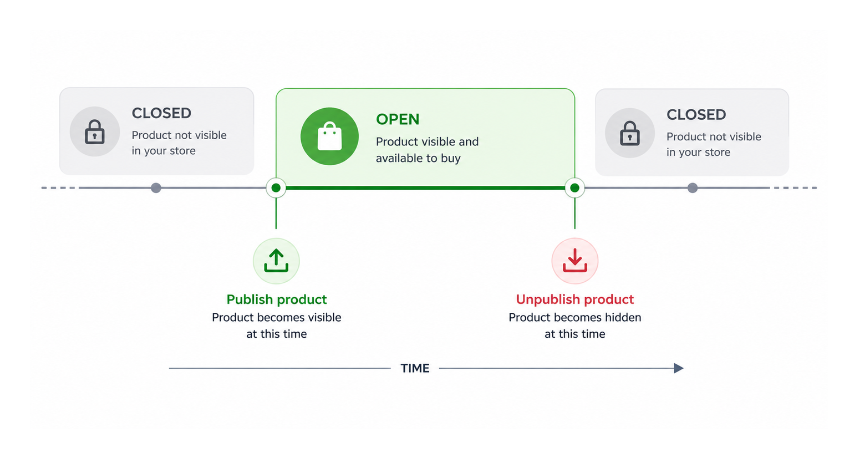
Decide what customers should see when ordering closes
Choose the result you want before setting the schedule.
Hide the product. Customers cannot find the product in your store while it is unpublished. Use this when the product should disappear outside its selling window.
Keep the product page visible. Set the available quantity to zero and turn off Continue selling when out of stock. Customers see the product page and its sold-out message, but they cannot place an order.
Open the product once in the future. Shopify's future publishing feature handles a one-time opening date and time. It does not create a weekly schedule.
The next step depends on whether the selling window happens once or repeats. A one-time launch only needs a publishing date.
Schedule one product for a future launch
Use future publishing when the product should open once for a launch, preorder, or limited release.
- Open Products in your Shopify admin and select the product.
- Set the product status to Active.
- In Publishing, click the calendar icon beside Online Store.
- Choose the date and time when the product should appear.
- Click Schedule publishing, then Save.
Shopify publishes the product at that time. You still need to close the product manually or use Flow or an app for the closing time. For a one-time product drop, see how to schedule a timed Shopify product drop.
When the same product should open and close every week, a one-time publishing date is not enough.
Repeat the schedule with Shopify Flow
Use Shopify Flow when the same product should open and close on a repeating schedule and you want Shopify to run the changes automatically.
Create one workflow for opening the product and another for closing it. Each workflow uses the Scheduled time trigger, which supports hourly, daily, weekly, and monthly repeats. Shopify Flow runs a scheduled workflow at most once every 10 minutes, and the schedule uses the time zone you choose in the workflow.
For the opening workflow:
- Choose Scheduled time as the trigger and set the opening time.
- Add a repeat rule, such as every Wednesday.
- Add Get product data and select the product by its title or tag.
- Add For each to work through the product returned by the search.
- Add Publish product and choose Online Store.
Create the closing workflow with the same product search and schedule. Replace Publish product with Unpublish product.
Test both workflows with a time a few minutes in the future. Check that the product becomes visible at the opening time and disappears at the closing time. If you need to schedule many products together, see how to bulk schedule products in Shopify.
If maintaining two workflows for each product group feels like too much, a scheduling app keeps those settings in one place.
Use a scheduling app for regular selling windows
A scheduling app is useful when selling windows are part of your normal weekly work or change often.
For a recurring schedule, Schedora lets you choose the products, set when they should appear and disappear, and repeat the schedule from one place. You do not need to build separate Flow workflows for each selling window.
The methods above hide the product outside the selling window. If the product page should stay visible while ordering is closed, use inventory as the order limit.
Keep the product visible while orders are closed
- Turn on inventory tracking for the product.
- Set the available quantity to the number of orders you will accept.
- Turn off Continue selling when out of stock.
- At the closing time, set the available quantity to 0.
Shopify then shows the product as sold out and stops new orders. At the next opening time, enter the quantity you want to accept.
Use this method for order limits or weekly batches. Keep real stock quantities separate when the product has physical inventory that customers can buy at other times.