You want one place in your Shopify store where customers can see this week's deals. Each week, you change the products on sale, but you do not want to rebuild the collection or edit the homepage every time.
Use the product's Price and Compare-at price fields to mark the sale, then create an automated collection that includes products with a compare-at price. When you add or remove that price, Shopify updates the deals collection for you.
Mark the products that are on sale
Open a product in Products and find the Pricing section. Enter the reduced amount in Price, then enter the original amount in Compare-at price.
For example, enter $24 as the price and $30 as the compare-at price. A theme that displays compare-at prices shows $30 beside the lower price on the product page and product cards.
If the product has variants, open each variant and enter its sale price and original price. If one variant has a compare-at price, Shopify places the whole product in the deals collection. Set the sale and compare-at prices on every variant that should be part of the offer.
For more detail on this pricing setup, read how to show a compare-at price on a Shopify product page.
Create the weekly deals collection
Shopify fills the collection from the products' pricing fields.
- Go to Products → Collections.
- Click Add collection.
- Name the collection Weekly Deals.
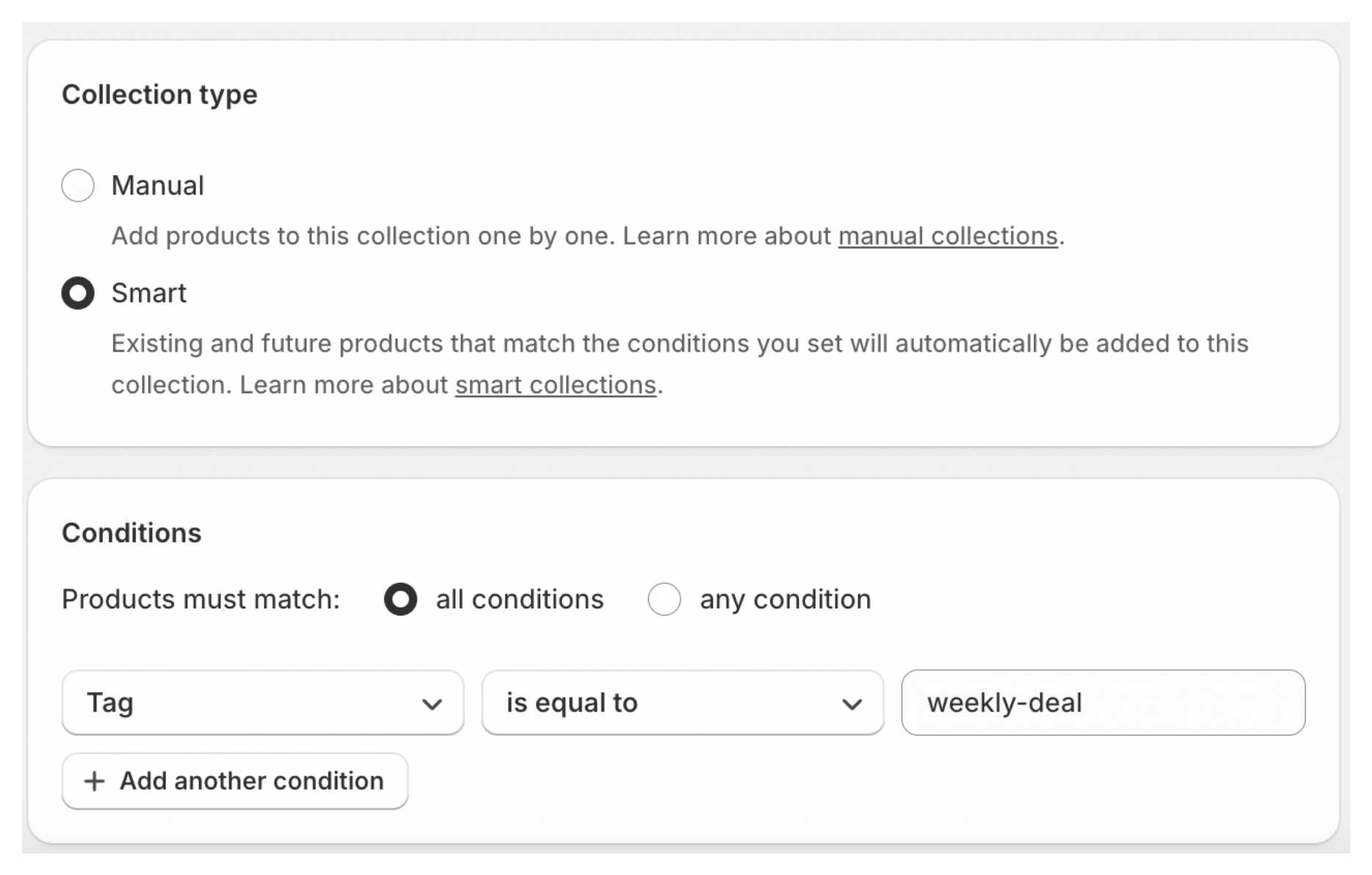
- Choose Automated as the collection type.
- Set the condition to Compare-at price → is not empty.
- Save the collection.
The collection now includes products with a compare-at price. Remove the compare-at price when a deal ends, and Shopify removes that product from the collection.
Add the collection to your store
Add the collection to your navigation so customers can find it from the menu.
- Open Content → Menus.
- Choose the menu where you want the link.
- Click Add menu item.
- Enter Weekly Deals as the name and select the collection.
- Save the menu.
To show the deals on the homepage, open Online Store → Themes → Customize. Add a Featured collection section, select Weekly Deals, and save the theme.
The homepage now shows the products in the Weekly Deals collection. The products change when their compare-at prices change.
Rotate the deals each week
When a weekly offer ends, open each old product and clear its Compare-at price. Leave its regular price in Price.
For the new offer, enter the lower price and original price on each product or variant. The new product appears in Weekly Deals, and the old product disappears after its compare-at price is removed.
If you use different prices for many products, update them in Shopify's bulk editor instead of opening each product separately. Keep the original price and sale price in the correct columns before saving.
When to use a discount instead
Use an automatic discount when you want the reduction to apply at checkout while the product keeps its regular displayed price. For example, you can offer 20% off a collection while keeping the regular product price on the product page.
That discount does not automatically place products in the Weekly Deals collection. The collection uses Compare-at price, so use the pricing fields when you want the sale products to appear in that section.
If you want customers to save more when they buy several items, learn how to create tiered discounts in Shopify.
For a weekly deals page that customers can browse, the automated collection is enough. Add the sale prices, link the collection in your menu or homepage, and remove those prices when the offer ends.