You create a discount in Shopify, but the product page still shows the regular price. The crossed-out original price is missing, so customers do not see the sale until they reach the cart or checkout.
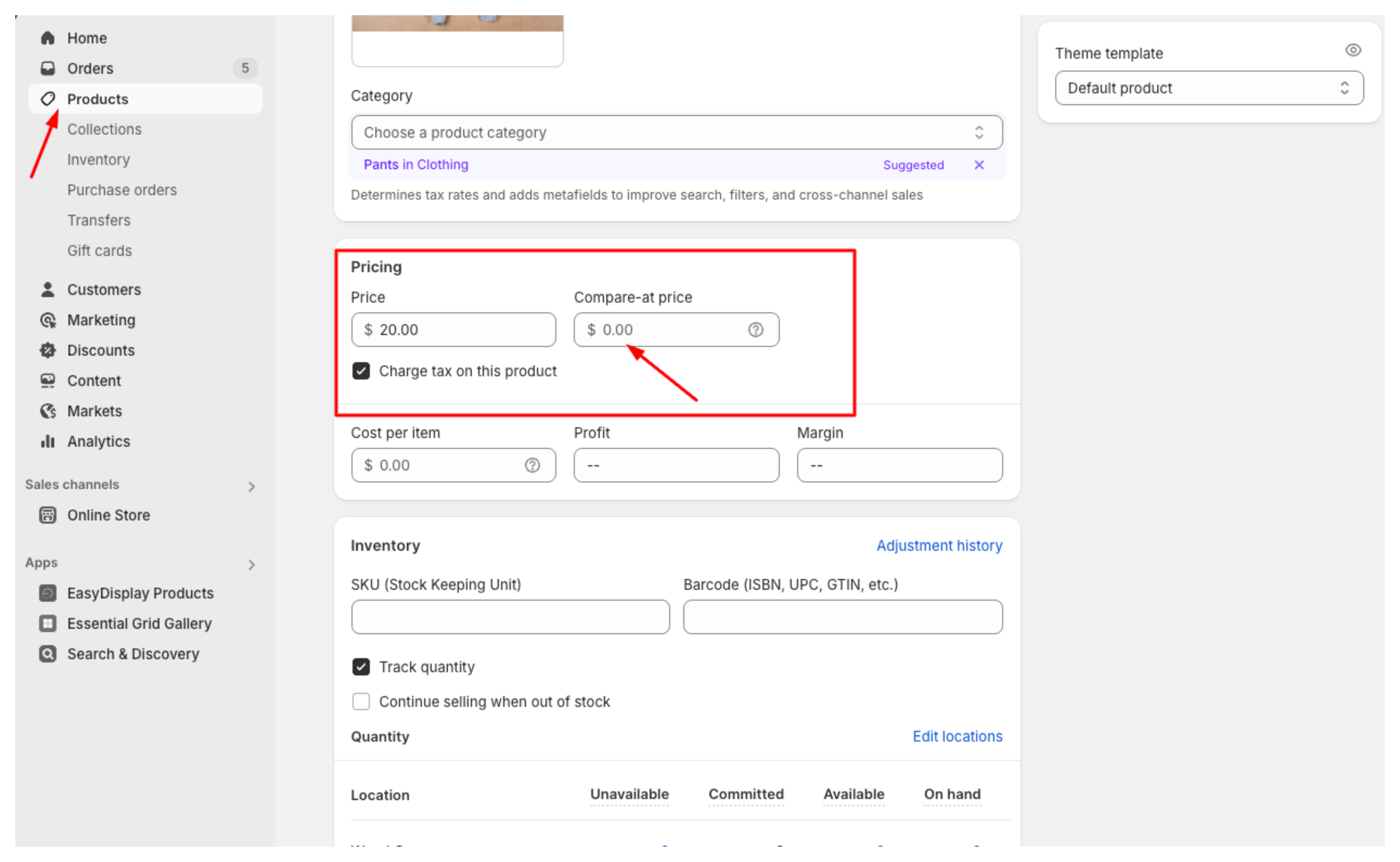
To show the sale on the product page, lower the product's Price and enter the original amount in Compare-at price. For a T-shirt reduced from $30 to $20, enter $20 as the Price and $30 as the Compare-at price.
Discount codes and automatic discounts are different. They reduce the order total in the cart or checkout; they do not create this crossed-out price on the product page.
Add the sale price
- In Shopify admin, open Products and select the product.
- In Pricing, enter the sale amount in Price.
- Enter the original amount in Compare-at price.
- Click Save.
The Compare-at price must be higher than the Price. With $20 in Price and $30 in Compare-at price, your theme can show $30 crossed out beside $20.
Set prices for variants
Shopify saves prices on each variant. If the T-shirt has different sizes or colors, open Variants, select a variant, and enter its Price and Compare-at price.
For example, set the Small variant to $20 and $30. Set the Large variant to $22 and $32 if it has a different sale price. Repeat this for every variant included in the sale.
For several products or variants, use Shopify's bulk editor. Select the products from Products, click Bulk edit, and add the pricing columns.
If the sale price is not visible
Open the product page and select the variant you changed. If the crossed-out price is missing, check these settings:
The original price is higher. A blank Compare-at price, or the same amount in both fields, does not show a sale.
The selected variant has the sale values. Each variant has its own Price and Compare-at price. Changing one variant does not change the others.
Your theme shows sale prices. The theme controls the price display. Check the product price section in Online Store → Themes → Customize.
If the price appears on the product page but not on a collection page, review every variant. Shopify can leave the product off sale on a collection page when variants have empty, zero, or conflicting Compare-at prices. Give the sale variants consistent values and leave the field empty for variants that are not on sale.
Shopify can also hide compare-at prices for customers in the European Economic Area. If customers in one region see the crossed-out price and customers in another region do not, check Settings → Markets → Preferences for that regional setting.
After saving, open the product page in a private browser window and select the variant again. The sale amount should appear beside the original amount.
For a sale that starts at a set time, see how to schedule product availability in Shopify. For a collection that updates as products go on sale, read how to set up a weekly deals section in Shopify.