Seasonal products have two important dates. They should appear when the season starts, and they should stop appearing when it ends.
Shopify handles the first date well. The second date needs a separate step. This matters for holiday products, summer items, back-to-school collections, and anything you only sell for part of the year.
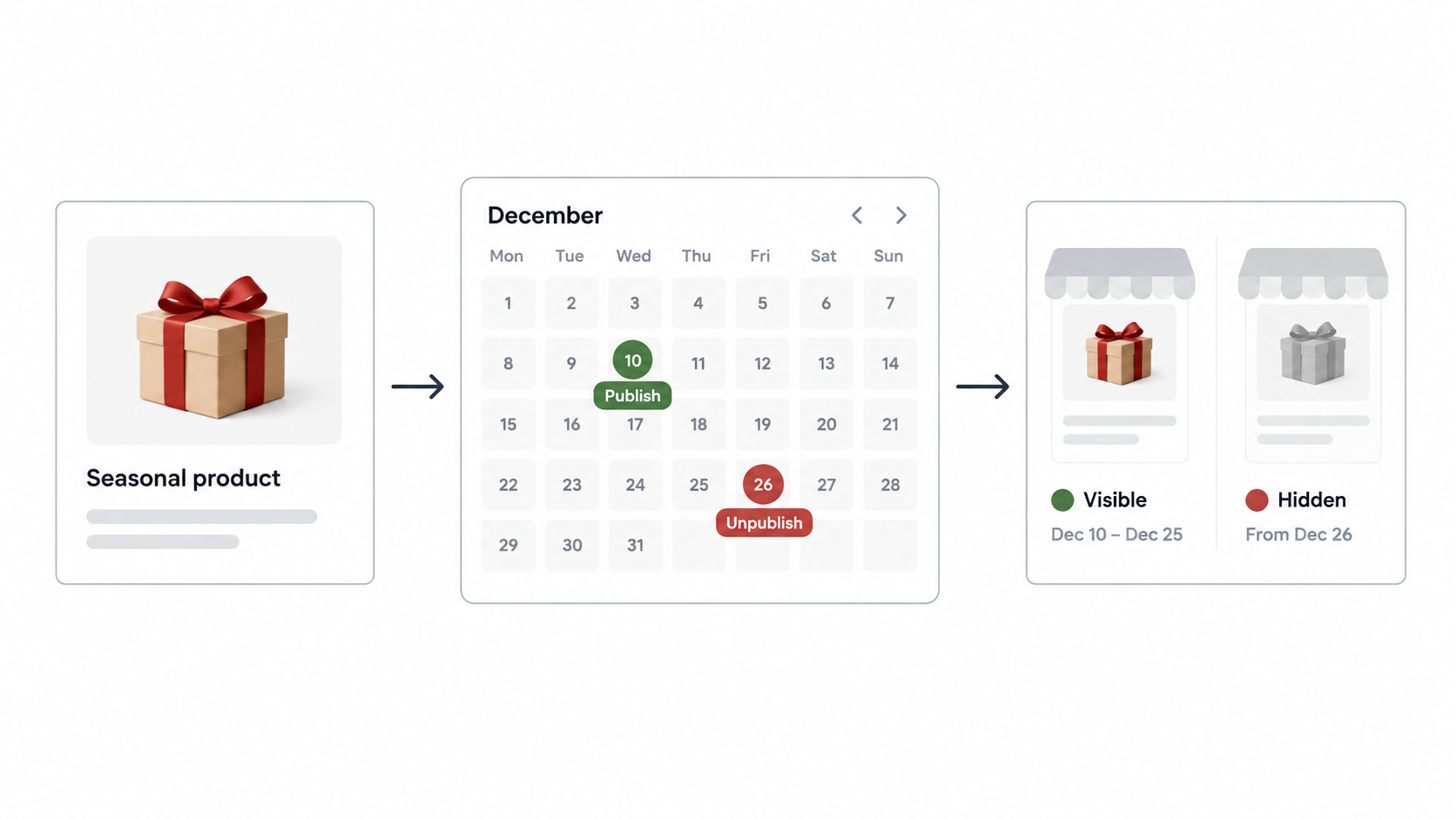
What Shopify Handles Natively
Shopify's future publishing lets you set a date and time for a product or collection to appear on the Online Store channel. You can prepare everything in advance and let Shopify publish it when the season starts.
There is no matching native setting for a product to disappear at a future date. A product that has been published stays published until you remove it, unpublish it, or another automation changes it.
Scheduling a collection is also different from hiding its products. If a product is published on its own, customers may still find it through search, a direct link, or another collection after the seasonal collection is removed.
Schedule the Start Date
For a small seasonal launch, Shopify's built-in scheduling may be enough.
Open the product in Shopify admin and make sure its status is Active. Then scroll to Sales channels and apps and click the calendar icon next to Online Store.
Choose the date and time when the product should appear. Click Schedule publishing, then save the product.
Shopify uses the store's timezone for this schedule. Check it in Settings, then Store details, before setting the launch time.
Repeat this for each product, or see the article on how to bulk schedule products in Shopify when the seasonal range has many products.
Schedule the End Date
There are three practical ways to close the season.
Unpublish the products manually. Set a calendar reminder for the end of the season, open each product, remove the Online Store sales channel, and save. This works for a small range that changes only once or twice a year.
Use Shopify Flow. A scheduled Flow workflow can find products using a tag such as season-summer-2026 and unpublish them from the Online Store channel. The workflow needs to be created, tested, activated, and turned off after it runs.
Use a scheduling app. A product scheduling app lets you set the start and end dates together. This is easier when several products share the same dates or when seasonal scheduling is part of your normal store routine.
Products and Collections Are Different
If the whole seasonal range is grouped in a collection, you can schedule the collection to appear on the start date. That controls the collection page and its links in your store.
It does not automatically make the individual products unavailable. A product can remain visible in search results, another collection, or a direct URL.
If the products should not be available at all after the season, schedule or automate the product visibility as well. Use collection scheduling for the page customers browse, and product scheduling for the products themselves.
A Simple Seasonal Workflow
Before the season starts, prepare the products and add a clear tag to the seasonal range. Check the images, prices, inventory, product descriptions, and collection settings.
Set the start schedule and the end schedule. Use the same timezone for every date. If you are using Flow, check that the tag filter returns the products you expect before activating the workflow.
After the start time, open the store in a private browser window and check one product from the collection. After the end time, check the product URL as well as the collection page. A collection can disappear while a product remains available.
If the seasonal range is a limited launch rather than a normal seasonal catalogue, the article on running a timed product drop in Shopify is the better fit. For weekly availability, see how to show Shopify products only on certain days or hours.
Which Option Should You Use?
For one or two products, Shopify scheduling plus a calendar reminder is usually enough.
For a larger seasonal range, use Flow or a scheduling app so you do not have to change every product by hand.
For recurring availability windows or several start and end dates, a scheduling app is the more practical option. The important part is to plan both dates. Publishing the products is only half of the seasonal setup.