You have grouped your Shopify products into collections. You want shoppers to find those collections through Google, but you are unsure what to write in the collection title, description, and search listing.
Start with one collection and one customer search. Search that phrase in Google, check whether the results show collections, and then update the Shopify collection that contains those products.
I’ll use a Coffee Mugs collection as the example.
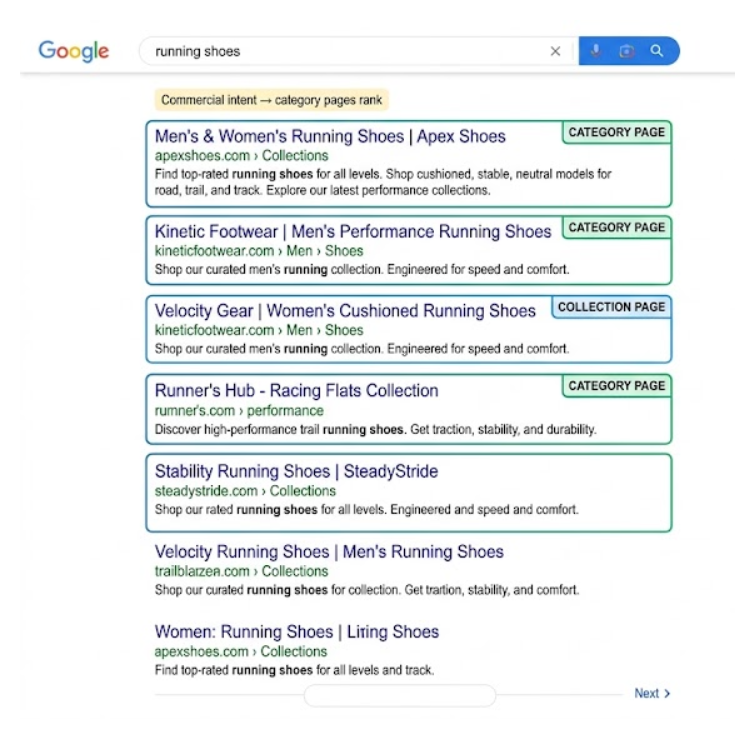
Search Google before editing the collection
Think of the words a customer would type when they are ready to compare products. For this example, search for coffee mugs.
Look at the first page of Google results. If the results show pages with several mugs, a Shopify collection is the right type of page for that search.
If the results show one product at a time, the search belongs on a product page. If the results answer a question, the search belongs in an article. This check tells you what kind of page to build before you change Shopify.
If you already have a Coffee Mugs collection with the right products, update that collection. Do not create a second collection with the same products.
Create or update the collection
In Shopify, open Products → Collections and create a collection or open the collection you already have.
For the example, use Coffee Mugs as the collection title. Add the mugs that shoppers should see after they open the collection.
If the collection is automated, check its conditions before saving. The conditions should include the products that belong in the collection and leave out products from other groups.
Save the collection and open it on your storefront. You should see the collection title and the products you selected.
Set the Google title and URL
On the collection page in Shopify, scroll to Search engine listing and click Edit website SEO.
Use Coffee Mugs as the page title. Review the URL handle as well. A short URL such as /collections/coffee-mugs is easy to read and matches the collection.
Shopify creates the handle from the collection title, but you can change it before publishing the page. If the collection already has a URL, keep it unless you have a reason to change it.
Write the collection description
Write a few sentences above the product list. Explain what the collection contains and what shoppers can choose from it.
For Coffee Mugs, describe the products that appear on the page. You can mention their material, size, or use when those details help someone choose a mug.
Keep the description useful for a shopper. Do not repeat the collection title in every sentence.
Link to the collection
Add the collection to your store menu if it is an important product group. You can also link to it from a related article or product page when the collection gives the reader the next useful choice.
Use Coffee Mugs as the link text so shoppers know where the link goes. Learn how to get organic traffic to your Shopify store for the wider order of SEO work across your store.
When to create another collection
Create another collection when it contains a different group of products that shoppers would choose separately. The new collection should have its own products, title, description, and place in your store.
If it would show the same products as Coffee Mugs, keep the existing collection and improve that page. Several pages with the same products make it harder to know which page should appear in Google.
Check the page after publishing
Make sure the collection is active and published to the sales channel where shoppers should see it. Open the collection on your storefront and check the title, description, products, and URL.
After Google has crawled the page, open the collection URL in Search Console. Check whether the searches that produced impressions match the products on the page.
If your collection pages are set up but traffic remains low, see why a Shopify store can stay stuck at low traffic despite SEO work.